
How-to · Updated October 4, 2026
Make your Google ads show only in your service area
Updated October 4, 2026
A few minutes per campaign
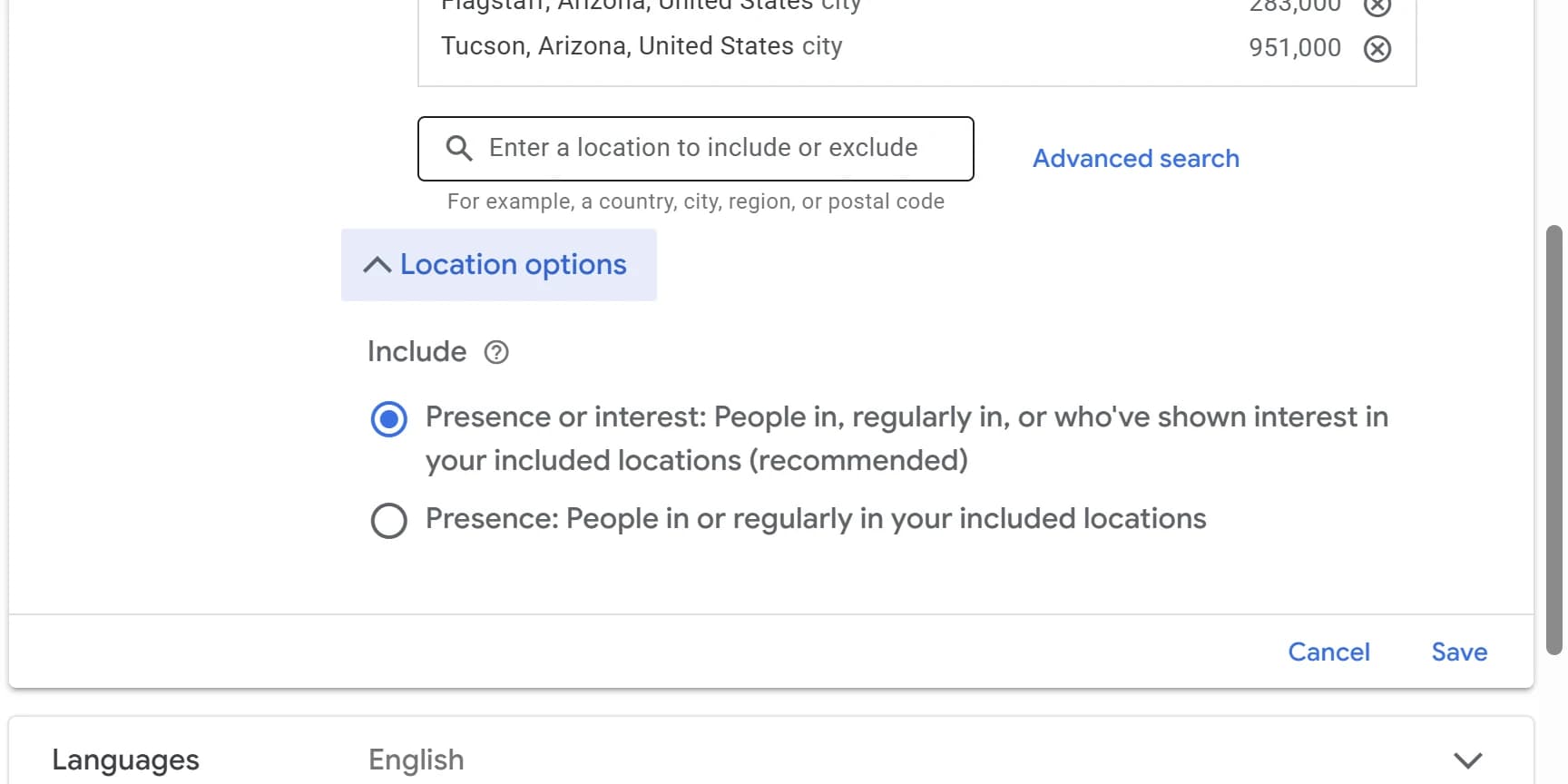
Switch each campaign's Location options from Presence or interest to Presence, so the ads go to people Google places in or regularly in your area. Then match the location list to the cities or zip codes you serve, nothing bigger. Exclude any place that keeps showing up. The settings belong to each campaign, so repeat it for every one.
Before you start
- Standard or Admin access to the Google Ads account. Both can edit campaigns.
- The list of cities or zip codes you actually serve, to compare each campaign against.
Switch Location options to Presence
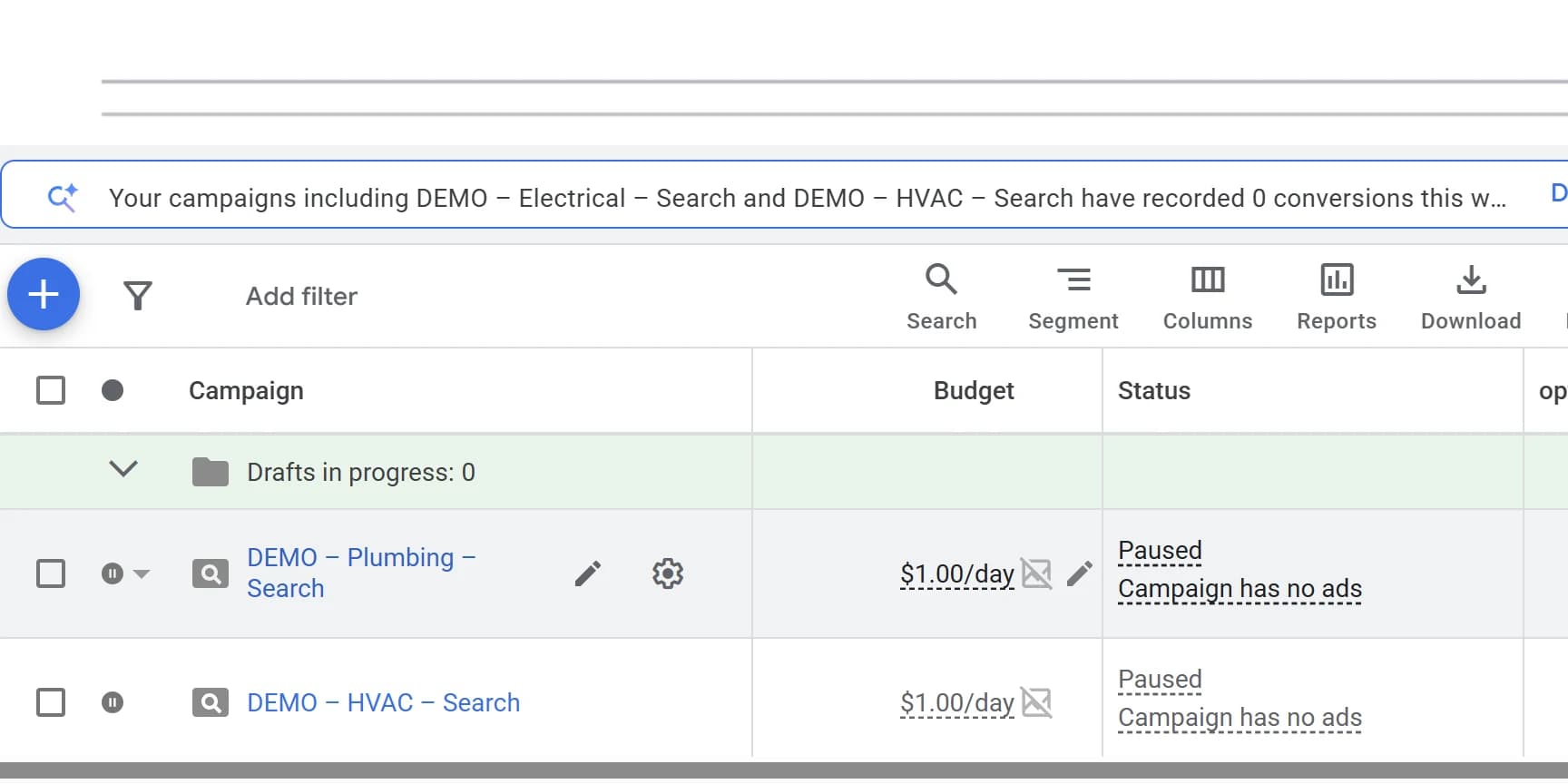
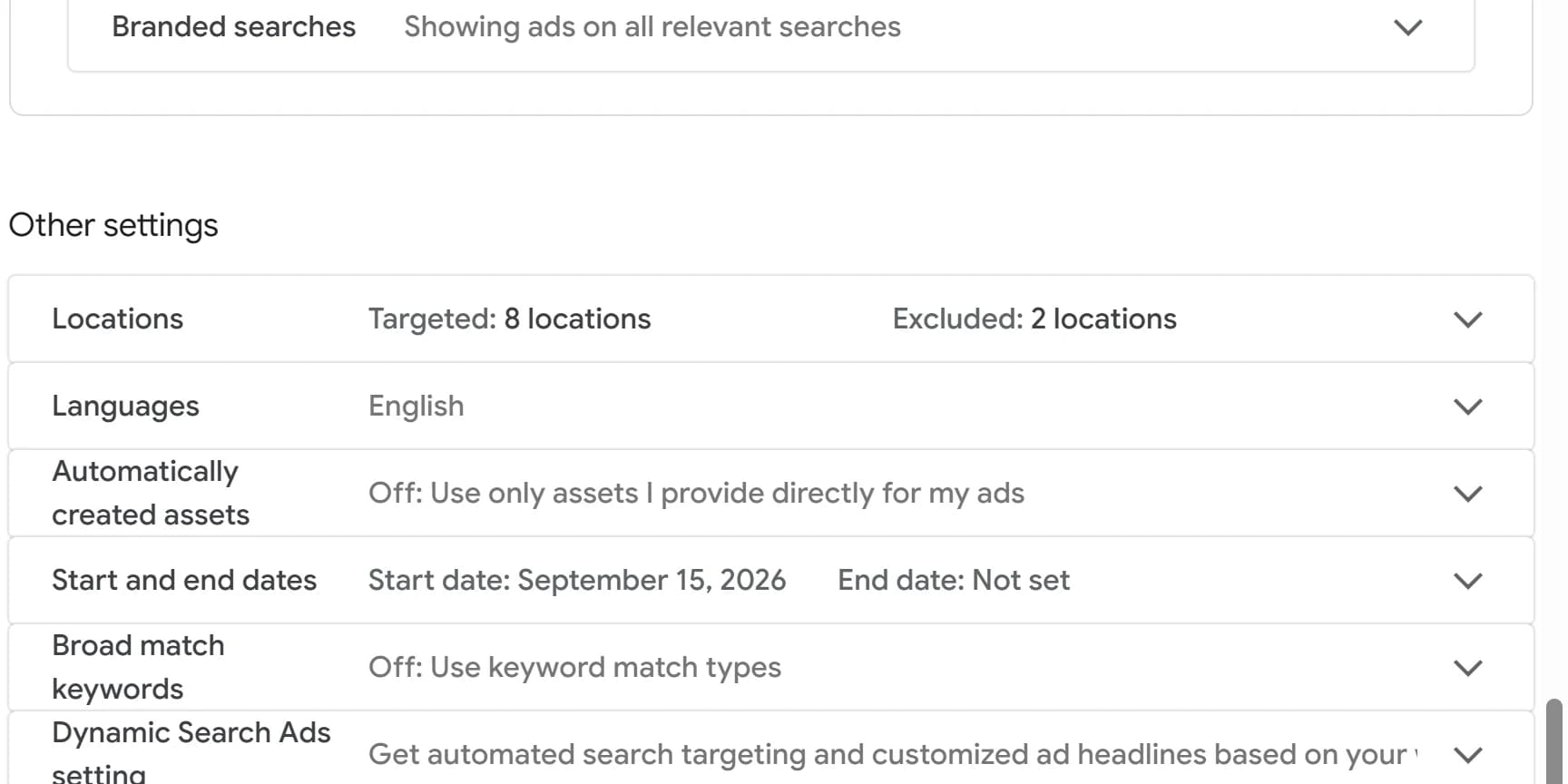
Every new campaign starts on Presence or interest, which also shows your ads to people elsewhere who search for your area, were there recently or read about it.
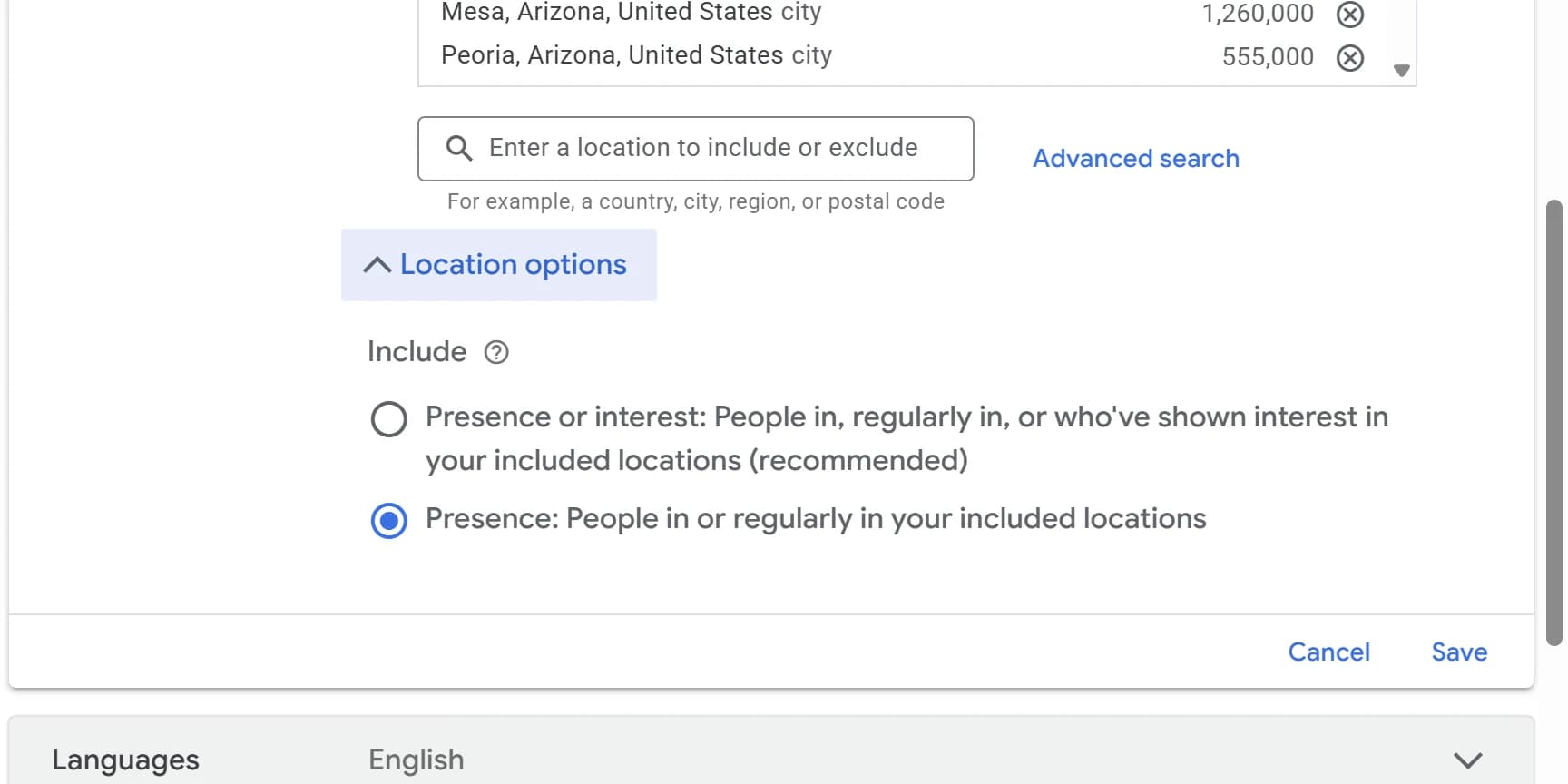
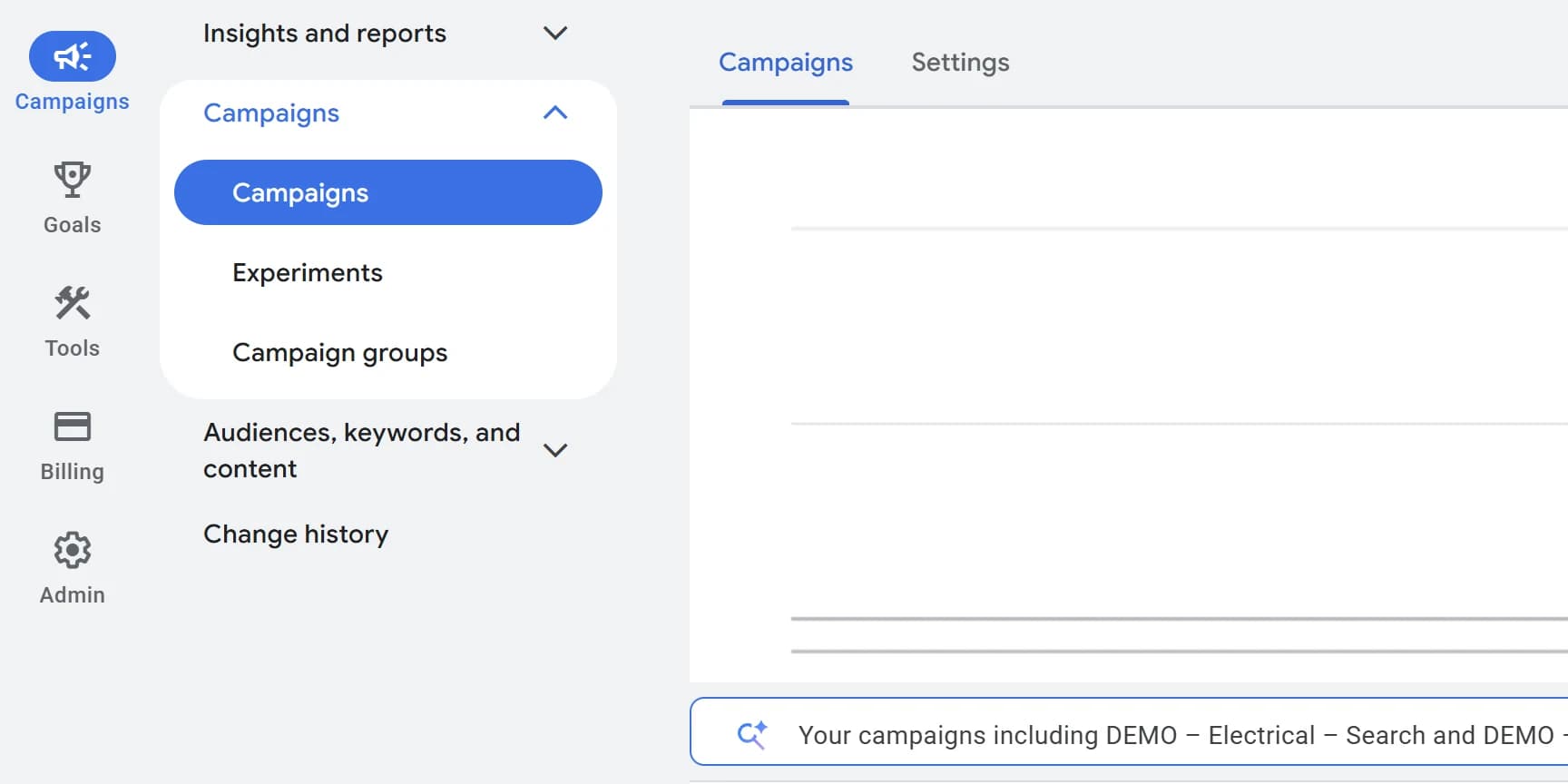
Make the location list match your service area
Presence aims your ads at the places you list, plus nearby areas too small for Google to target on their own. If the list is bigger than your service area, the ads reach further too.
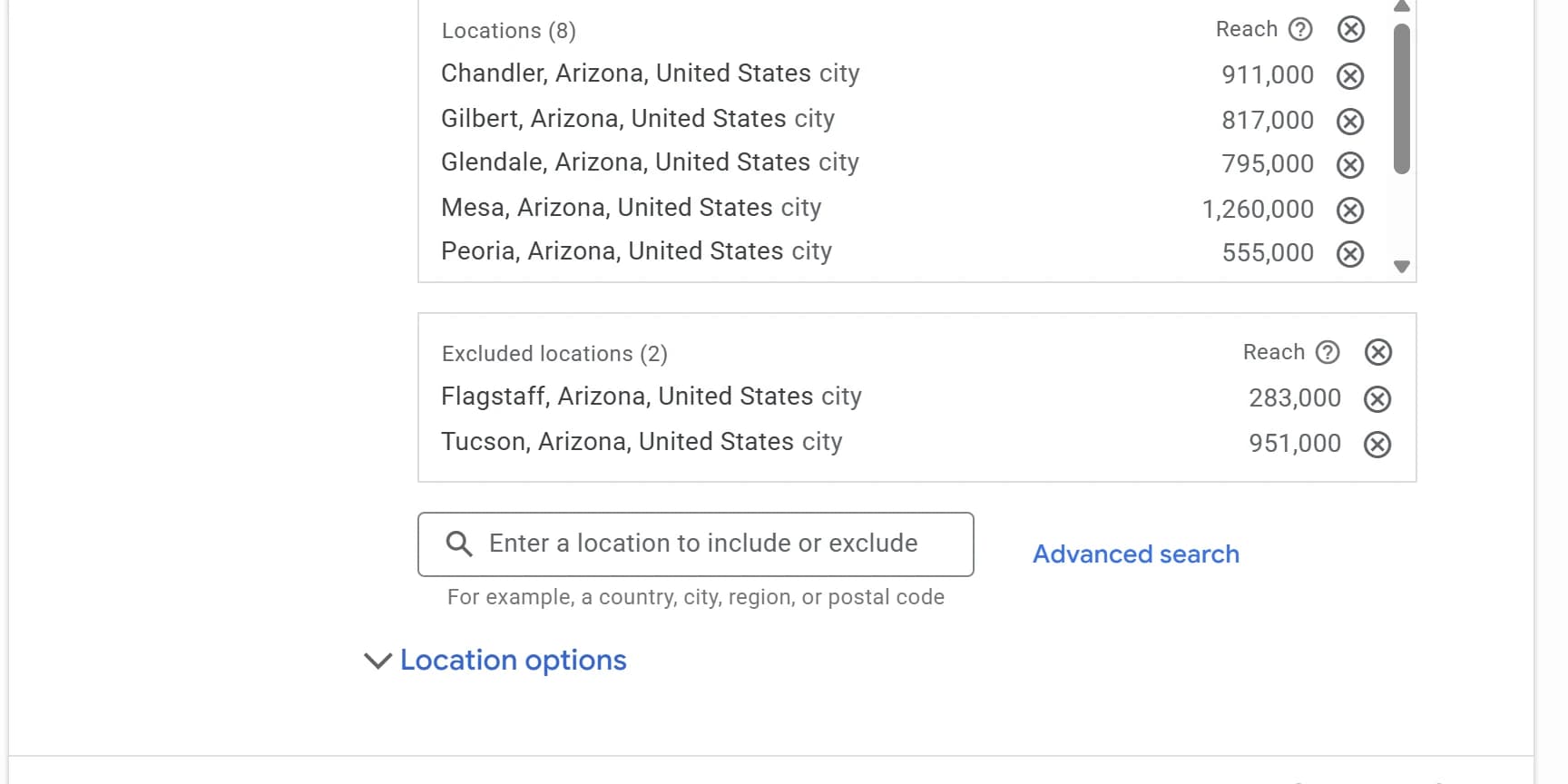
- In the same Locations setting, read every line under the targeted locations.
- Replace any county, metro area or state with the cities or zip codes you serve. Google warns that very small targets may show ads only now and then, or not at all, so do not go smaller than the area you serve.
- Check the state after each city. Glendale, Arizona and Glendale, California are separate targets.
- If you target a radius, open the map and look at what the circle takes in. Shrink it, or swap it for a list of towns, if it crosses into places you do not go.
- Click Save.
Exclude a place that keeps showing up
Do this after the switch. An exclusion blocks people Google places inside the excluded place, so it cannot stop people elsewhere who search for your area. That is the job Presence does.
- In the campaign's Locations setting, search for the city or zip code.
- Click Exclude next to it. It moves to the Excluded locations list.
- Click Save.
This also works inside your own target area. Target a radius or a county, then exclude the town in it you do not serve.
Check it worked
Reopen Location options on each campaign: Presence is selected under Include. Check every campaign. New campaigns start on the default again, so check each one the day it is built.
Then judge it on what comes in. After a few weeks, see where your ad visits came from in Google Analytics and whether calls from outside your area have dropped. A few will still get through, because Google places people by their device and network, not their address.
Local Services Ads have no Location options
Local Services Ads use their own service area setting. They show to people in it, and also to people elsewhere whose search names a place in it. Leave out every city and zip code you do not serve: open the Local Services lead inbox, go to Profile & budget, and edit the Service areas card. Google notes an ad can still reach someone in a zip code you left out when their location is only known to the city.
Campaigns with AI Max turned on
AI Max adds an optional setting on each ad group, Locations of interest, that limits which places a search can be about. Google reads the place named in the search first, and the searcher's own location when the search names none. If a campaign has AI Max on, open Ad groups, then each ad group's Ad group settings for AI Max, select Locations of interest and add every city you serve. Searchers still have to pass the campaign's own location setting as well.