
How-to · Updated October 4, 2026
See the searches that triggered your Google ads, and block the wrong ones
Updated October 4, 2026
10 minutes
Open Campaigns, then Insights and reports, then Search terms to see what people typed before your ad appeared. Tick the wrong ones and click Add as negative keyword. Google adds each as an exact match, which blocks only that one search, so cut it down to the word that makes it wrong.
Before you start
- Standard or Admin access to the Google Ads account. Read-only access can open the report, but adding a negative keyword is a campaign edit, which Read-only cannot make.
- A date range with enough traffic. Google leaves out searches that only a few people made, so a short range shows fewer rows. Start with the last 30 days.
Open the search terms report
Pull the last 30 days of searches and add the Keyword column, so each search shows the keyword that caught it.
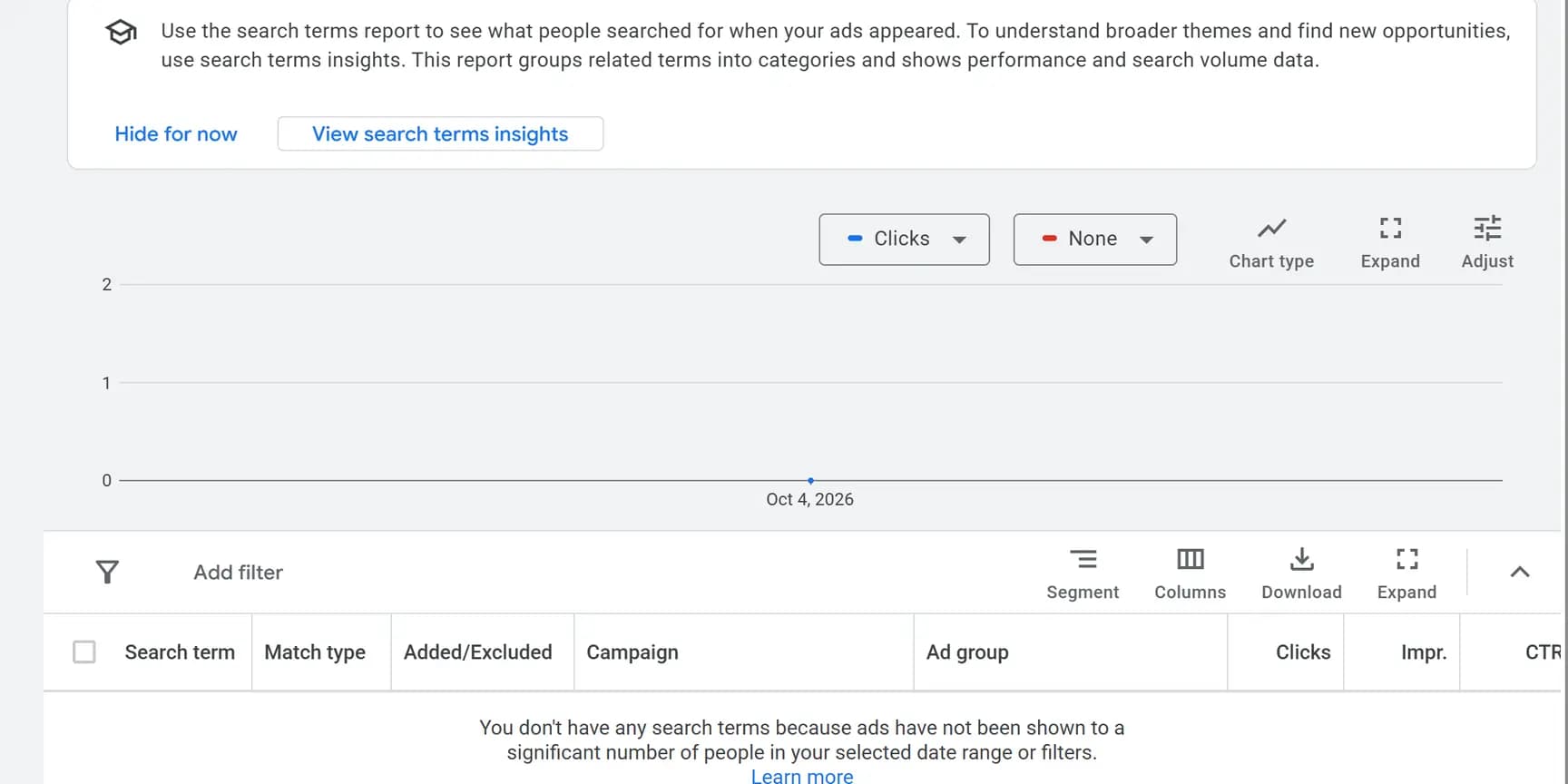
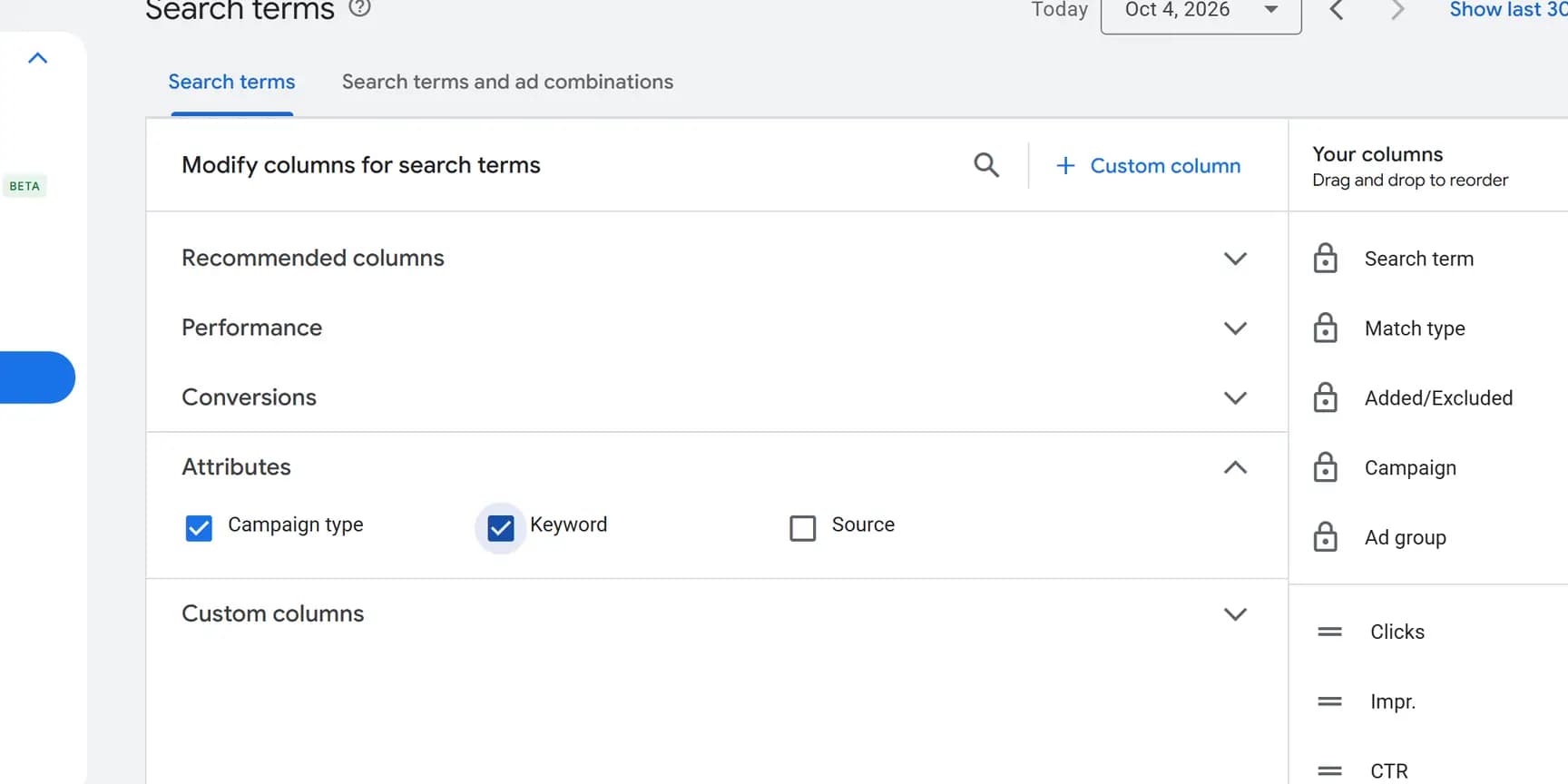
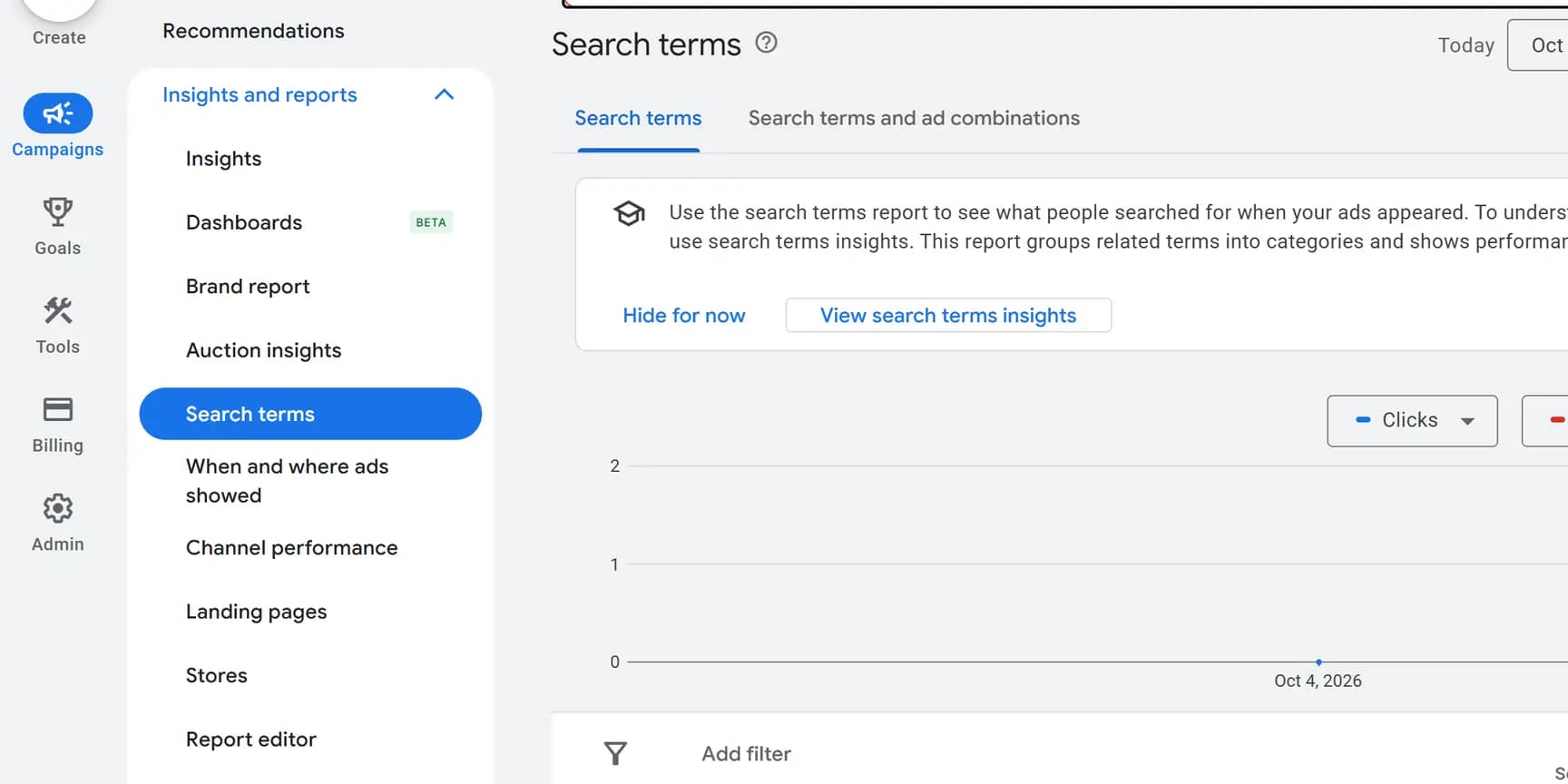
Read each row as a customer asking for something. A service you do not offer, a town you do not serve, or someone looking for work ("jobs", "salary", "training") is a click from someone who will not book.
Block the wrong searches
A negative keyword stops your ad showing for matching searches; how much it blocks depends on its match type. It does not match plurals, synonyms or close variations, though it does cover capital letters and misspellings.
- Tick the box next to each search you want to block, then click Add as negative keyword.
- Choose where it applies: the Ad group, the Campaign, or a Negative keyword list, which can cover several campaigns. If you pick an existing list, tick Add to campaigns so the list applies to the campaigns those searches came from.
- Each search arrives as an exact match negative, which blocks that exact search and nothing longer. To block every search with a word in it, such as "jobs", replace the entry with that word alone as a broad match negative (no match-type symbols around it), and add its singular or plural too.
- Click Save.
Check it worked
A negative keyword does not remove searches already in the report, so after a week, set the date range to start the day after you saved it.
The searches you blocked should be gone from the new dates, and so should others containing a word you blocked as broad match. If a variation still shows up, such as the singular of a word you blocked, add that form as well. A missing row is not proof on its own, since the report also leaves out rare searches, and Google says a negative keyword is ignored when it comes after the 16th word of a very long search.
Exact, phrase and broad negatives, side by side
Take the negative keyword plumbing jobs. Here is what each match type blocks, following Google's rules for negatives.
Broad (plumbing jobs): blocks any search with both words in any order, such as "plumbing jobs near me" and "jobs in plumbing". It does not block "plumbing job".
Phrase ("plumbing jobs"): blocks searches with the two words together in that order, such as "plumbing jobs near me". It does not block "jobs in plumbing".
Exact ([plumbing jobs]): blocks the search "plumbing jobs" and nothing else. This is what the report adds by default.
Why some searches are missing from the report
The report only lists searches that a significant number of people made. Google leaves out the rest for privacy, so the rows will not add up to your total clicks.
Where Google offers Search terms insights, it groups those low-volume searches into themes, or into "other queries", without showing the searches themselves.