
Running ads · Updated September 16, 2026
Why does Google Ads show more conversions than I actually got?
Updated September 16, 2026
Because Google Ads counts what your conversion actions track, not the leads you got. The usual causes are one lead tracked by two actions, lead actions set to count every conversion instead of one, and phone number taps or page views counted as conversions. Find the action behind the extra count, then fix it under Goals, Conversions.
Google counts what your conversion actions track, not your leads
Google Ads has no way to know what a lead is. Each conversion action watches for one thing, like a form submission, a thank-you page visit or a phone call. When a primary action fires after an ad click, the Conversions column counts it.
So the number rises whenever an action fires for something that is not a lead, or fires twice for the same lead. Nothing checks it against your inbox or call log.
It also steers your bidding. Maximize conversions and Target CPA work toward whatever the Conversions column counts. Count taps and duplicates, and the campaign chases more of them while your cost per conversion looks better than your cost per real lead.
For example
A roofer gets 12 form fills and 6 calls from ads in a month. Google Ads reports 41 conversions: each form fill counted twice, by the Google Ads tag and by a Google Analytics import, plus 11 taps on the website's phone number. Nothing is broken. Each action does exactly what it was set up to do.
Find the action the extra conversions come from
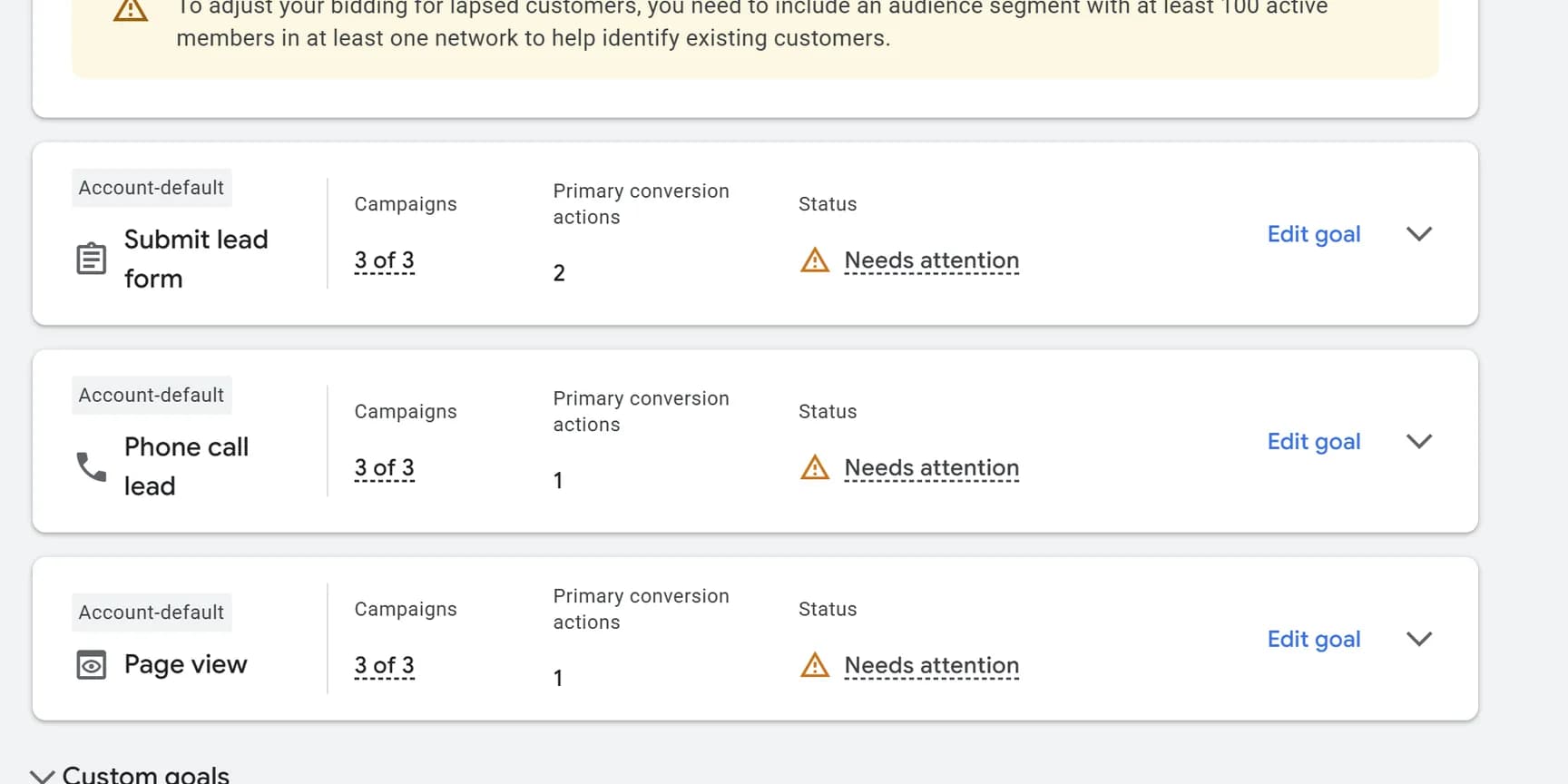
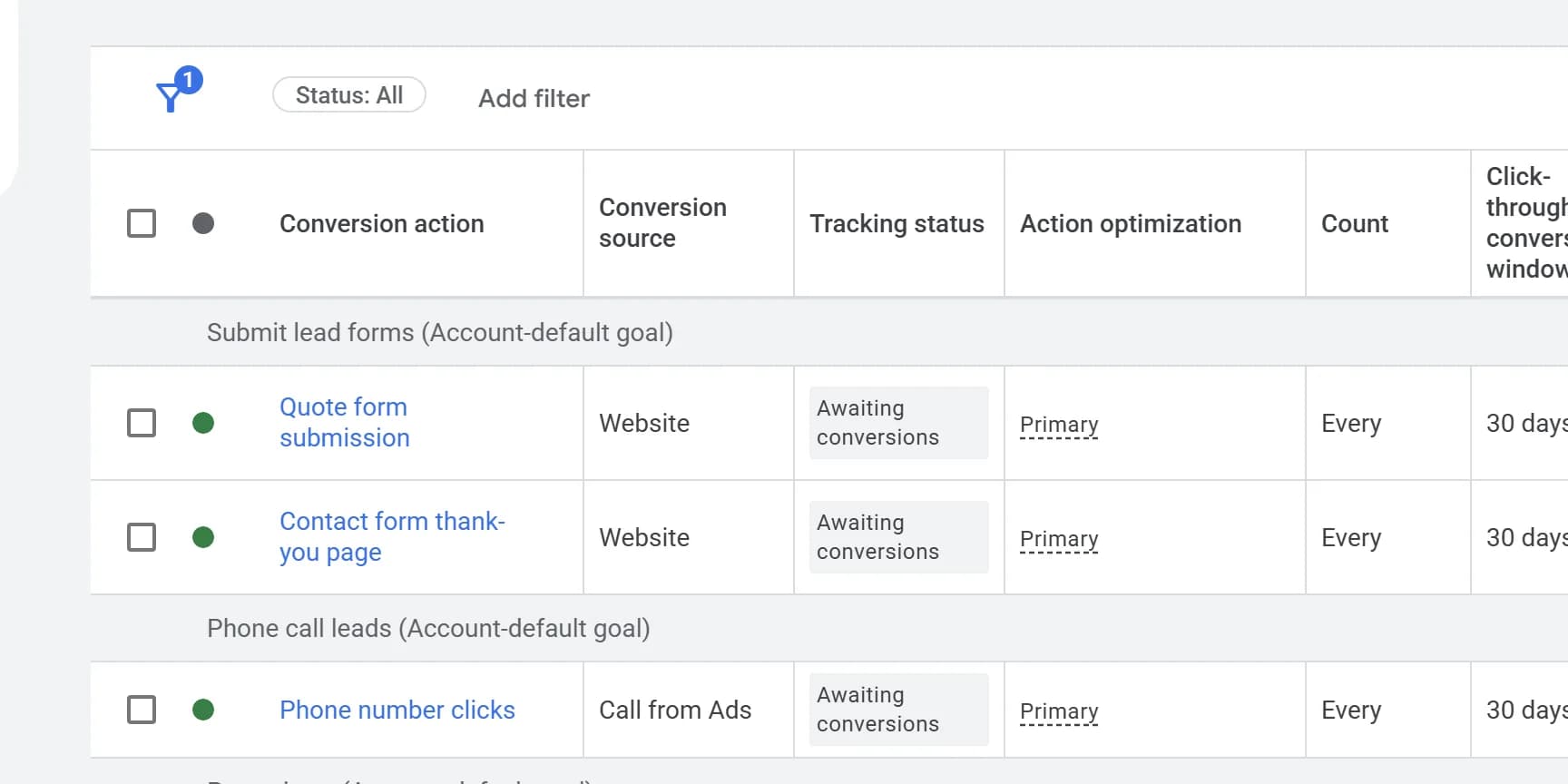
Before you change a setting, find the action inflating the count. One table in Google Ads lists every action with the settings that inflate it.
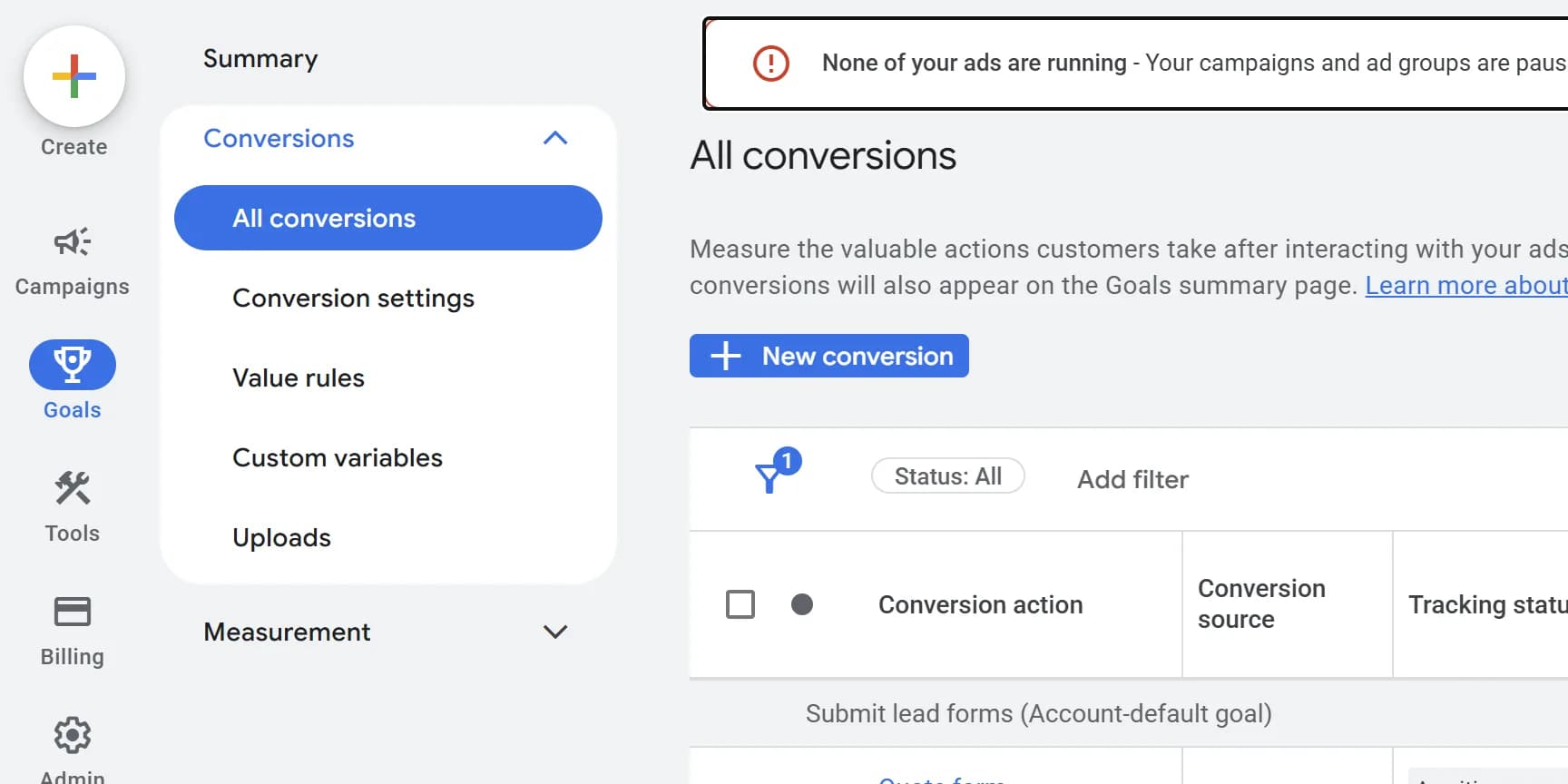
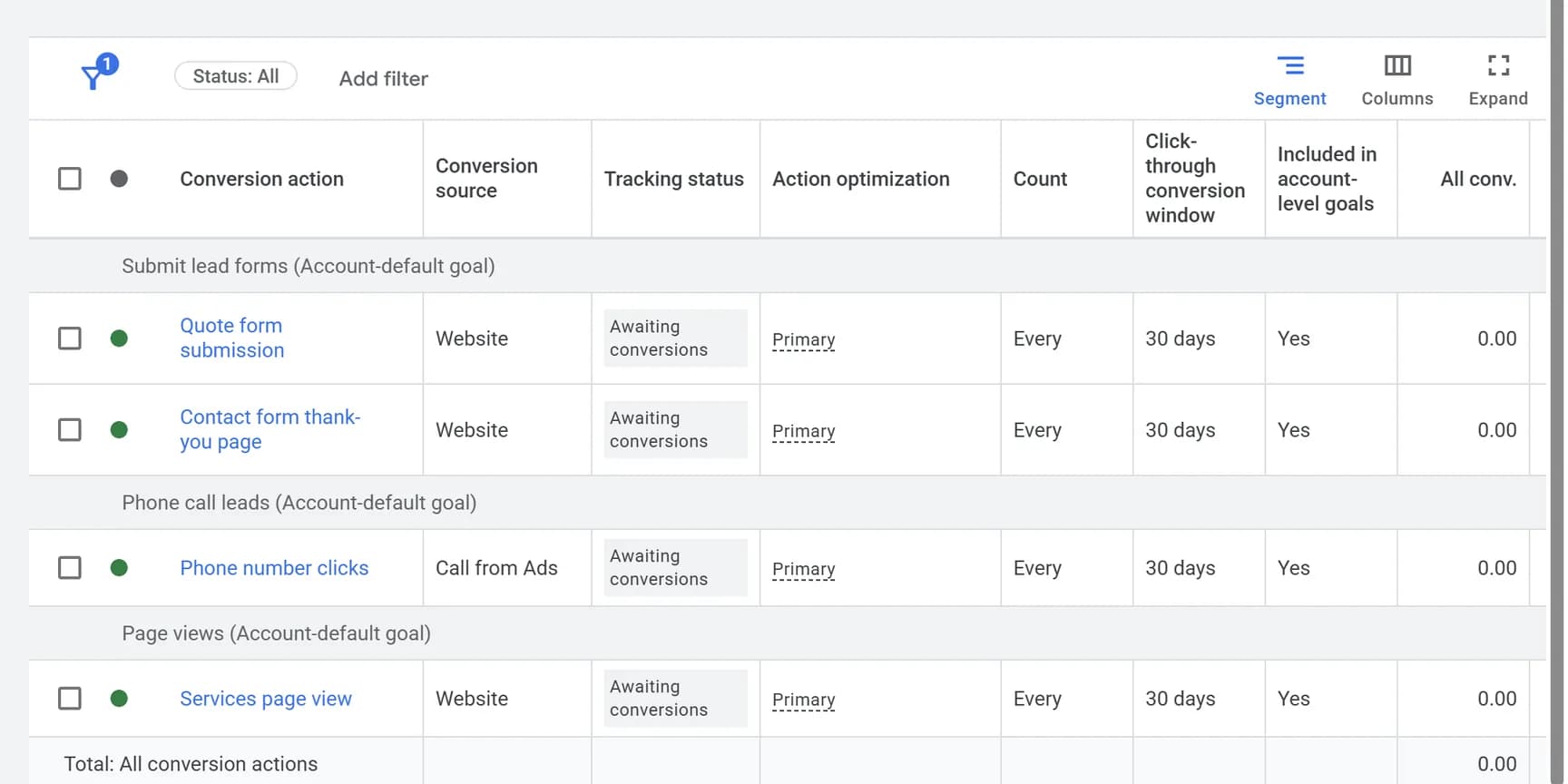
Then hold each count up against your records. Count the form submissions and calls you actually received that month. Google only counts conversions that follow an ad interaction, usually a click, so an action tracking your form should come in under your total form submissions from every source. A few either way can be timing, covered below. Double, or more than your total, means it is counting more than your leads.
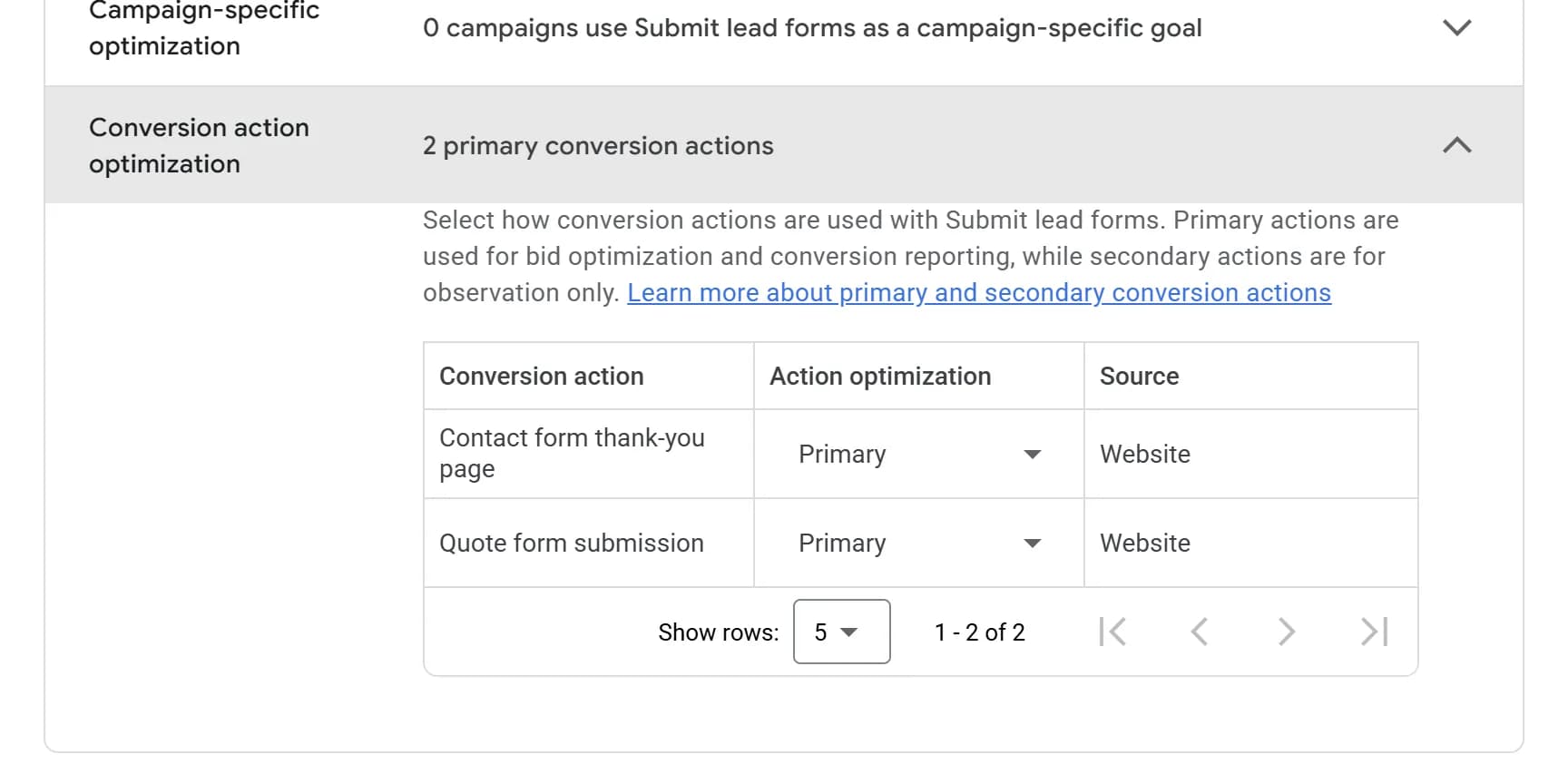
Then read the rows. A page view, a button click or a tap on your phone number should not be Primary. Two primary actions tracking the same form or calls, often one with a Website source and one from Google Analytics, are one lead tracked twice. And a lead action on Every can count one person several times.
To see the counts campaign by campaign
Click Campaigns, then Segment above the table, then Conversions, then Conversion action. Each campaign splits into one row per action. Add the All conv. column if it is not showing, because Conversions leaves out secondary actions.
Fix what gets counted
Count each lead with one primary action
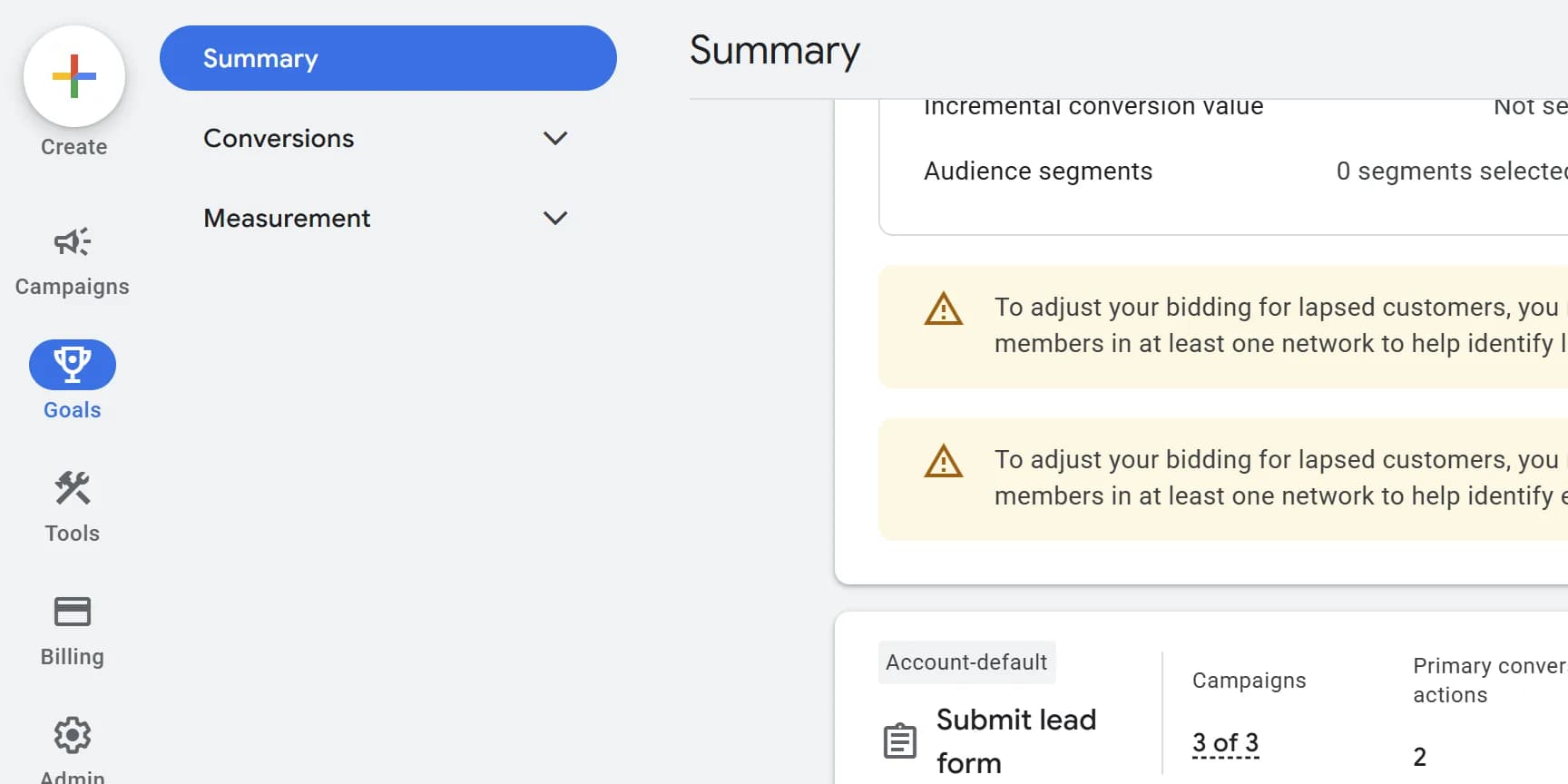
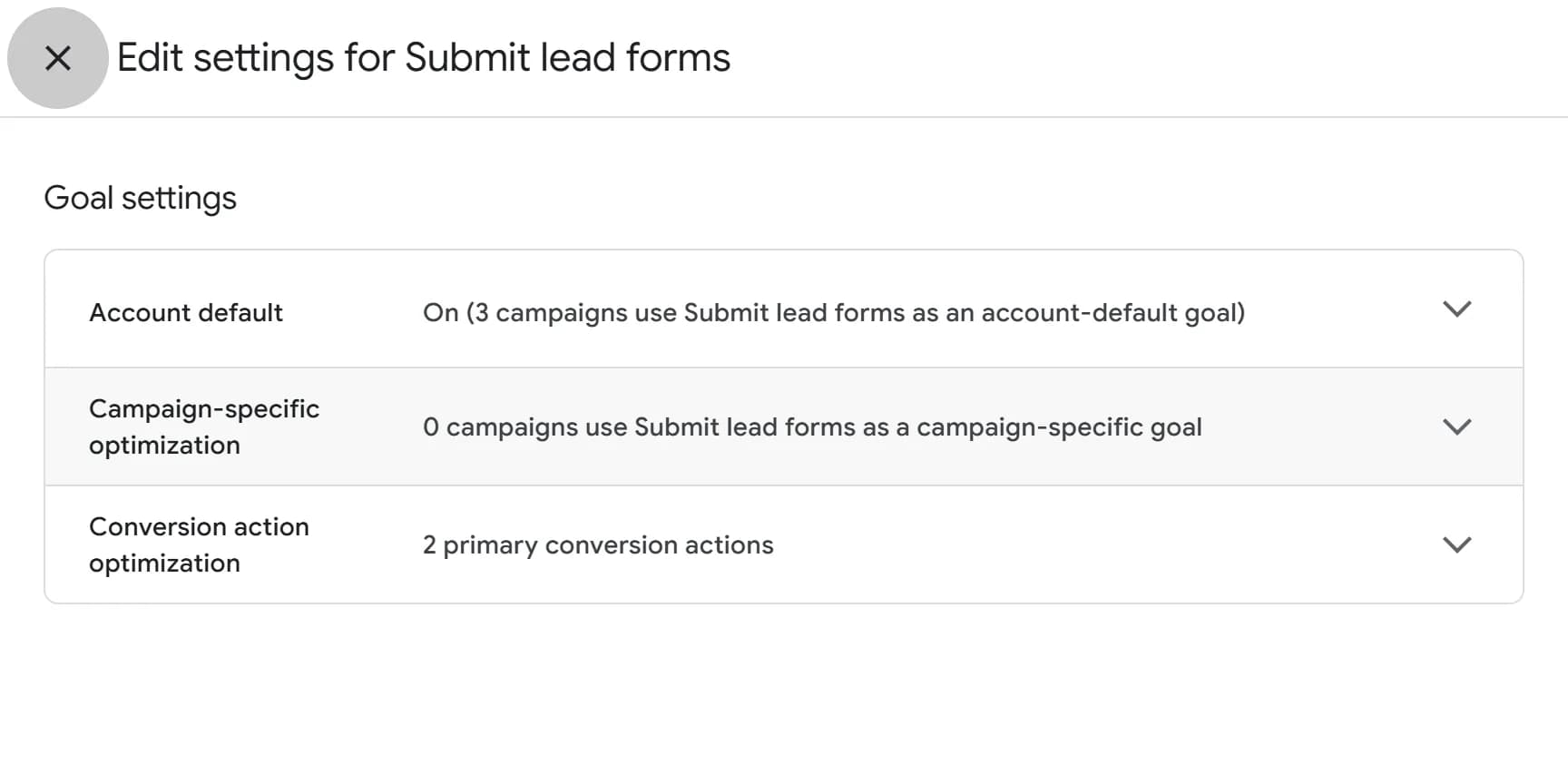
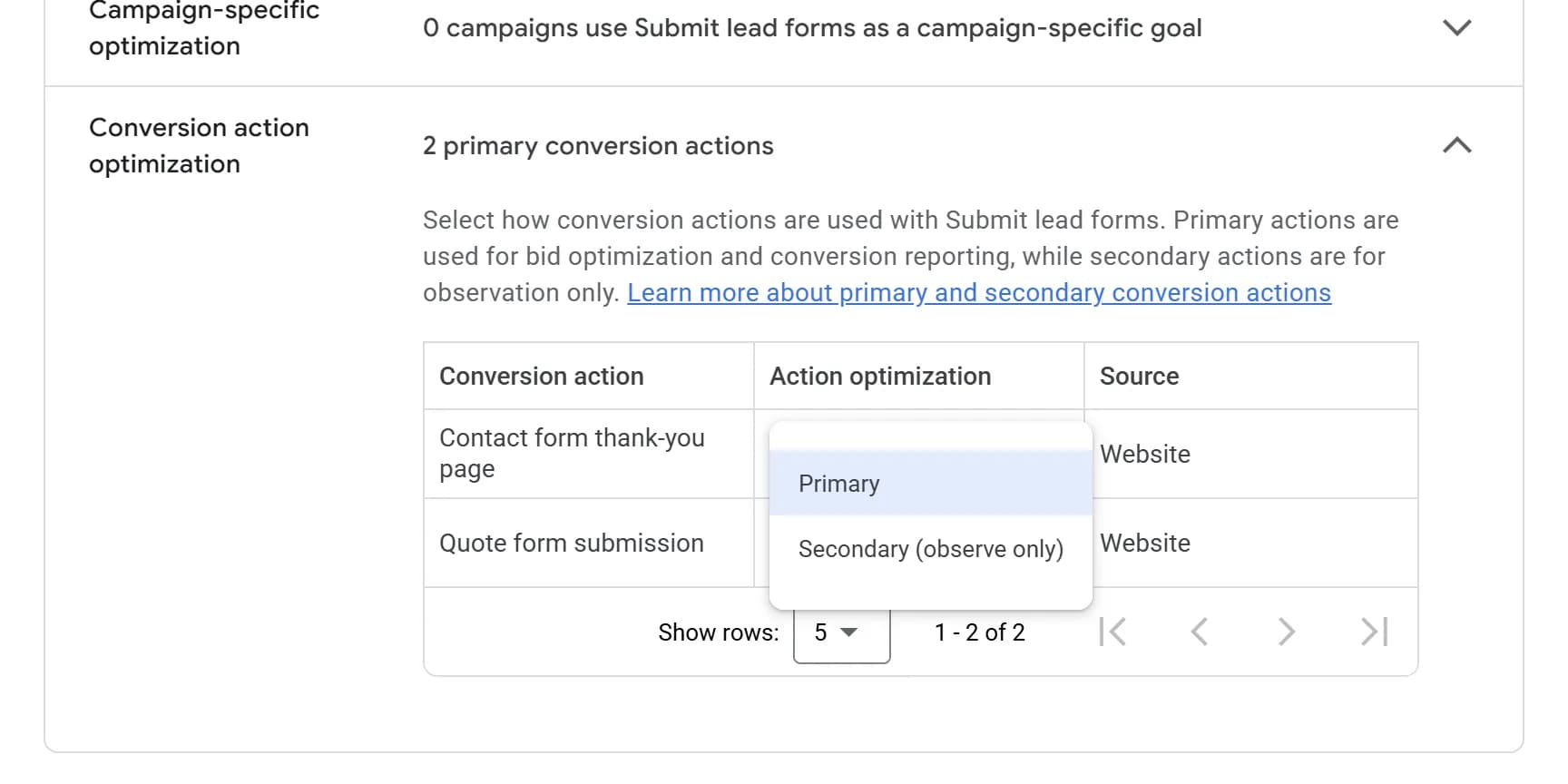
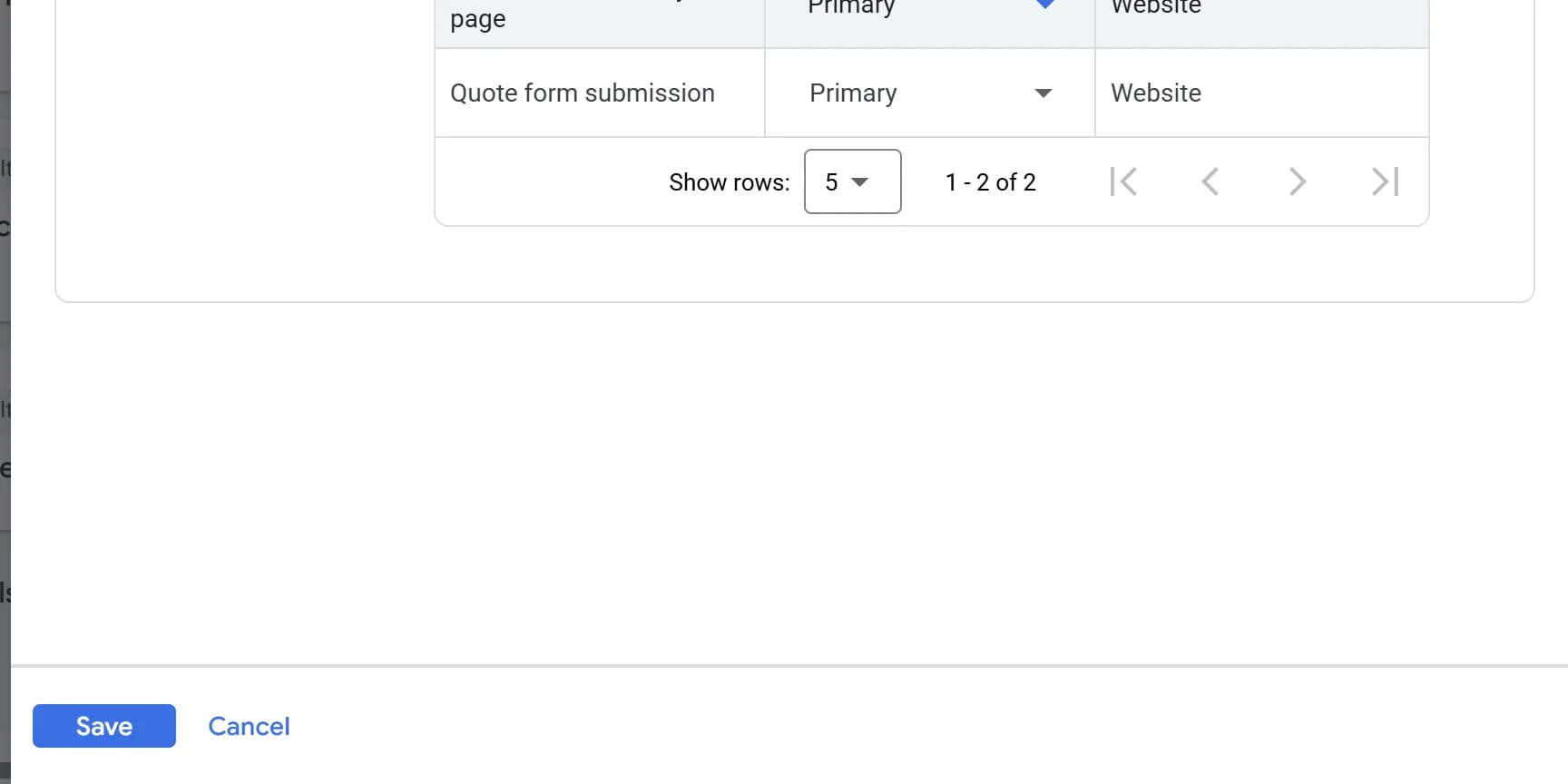
If two actions track the same form or the same calls, keep one as primary and set the other to Secondary. Both keep recording, but only the primary one counts in Conversions and steers bidding.
A common pair is a Google Ads tag and a Google Analytics import. Google lets you run both for the same form at once. So does a website plugin that adds its own Google tag on top of one added by hand, which Google's setup guide warns can cause duplicate conversions.
If one fires on the wrong thing, keep the other. Test both as "Make the tag fire only on a finished lead" describes. If both pass, pick by who runs your tracking.
Keep the Google Ads tag if your campaigns use automated bidding and someone manages your tags. It reports straight to Google Ads with no Analytics step in between, which is why many advertisers who rely on automated bidding keep it.
Keep the Google Analytics import if nobody manages tags for you. It reuses a key event you already track in Analytics, so one setup covers your reports and your ads. Leave its attribution on Google paid channels, the default, so an unpaid visit along the way cannot take the credit.
Whichever you keep, set the other to Secondary instead of deleting it. It keeps recording in All conv., so if the primary one breaks, the other one shows it.
Set actions that are not leads to Secondary
If an action tracks a page view, a button click or a tap on your phone number, set it to Secondary the same way. Keep primary for what you would call a lead: a finished form, a real call, a booking.
Google's own guide says the same: keep only the last step, like a finished form, as primary, so the count does not inflate.
Phone number taps are easy to mistake for calls. An action tracking clicks on your number counts the tap, not a call. Someone who taps and hangs up still counts, and Google's default for that action counts every tap, so two taps count twice.
To count real calls instead, use Google's call tracking: Calls from ads for the number in your ads, and Calls to a phone number on your website for a Google forwarding number shown on your site to visitors from your ads. Both count actual calls, not taps, and let you set a minimum call length.
Google's own words
On tracking taps on a phone number: "we can only track these clicks, not the phone calls themselves."
Why your Business Profile shows up in All conversions
When your Business Profile is linked to Google Ads through location assets, Google creates local actions conversions on its own. They count taps on your listing's Call, Directions and Website buttons by people who interacted with your ad, within 30 days by default. A Directions tap counts even from a later, unpaid search result.
They show in All conv., and in Conversions only for a campaign set to bid on them. They are taps, not calls, visits or leads, so leave them out when you compare Google's numbers to yours.
Count leads once per ad click
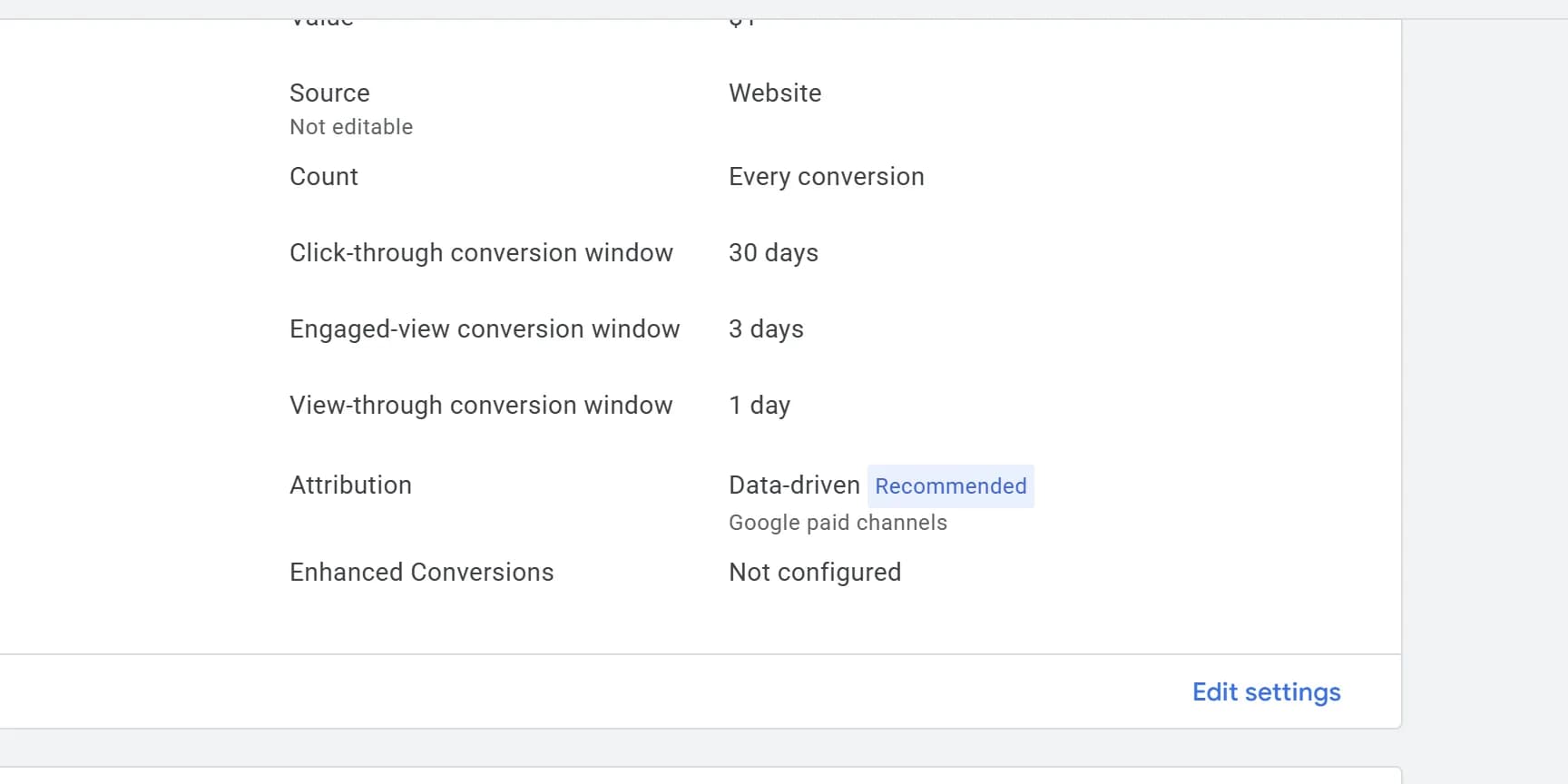
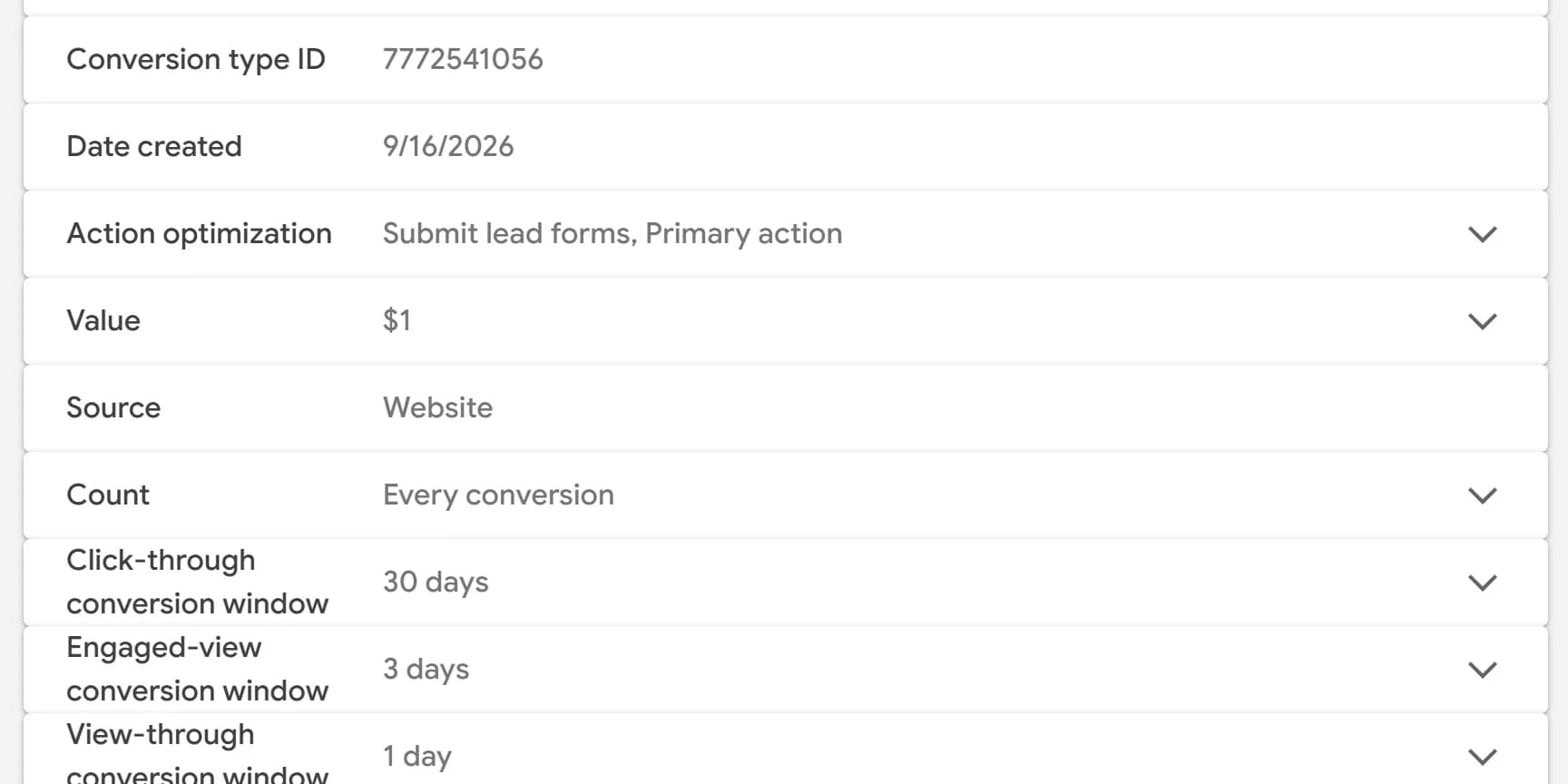
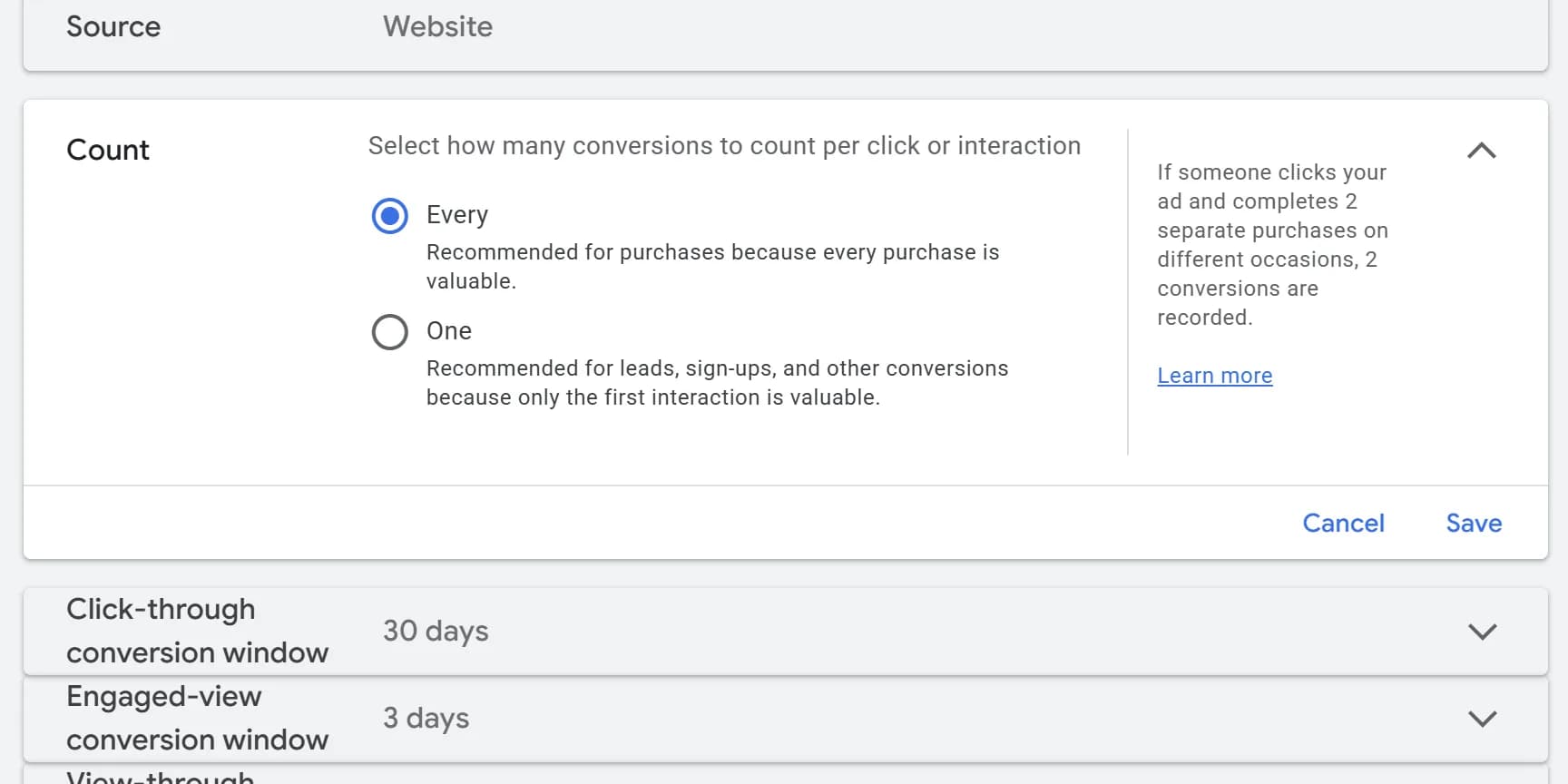
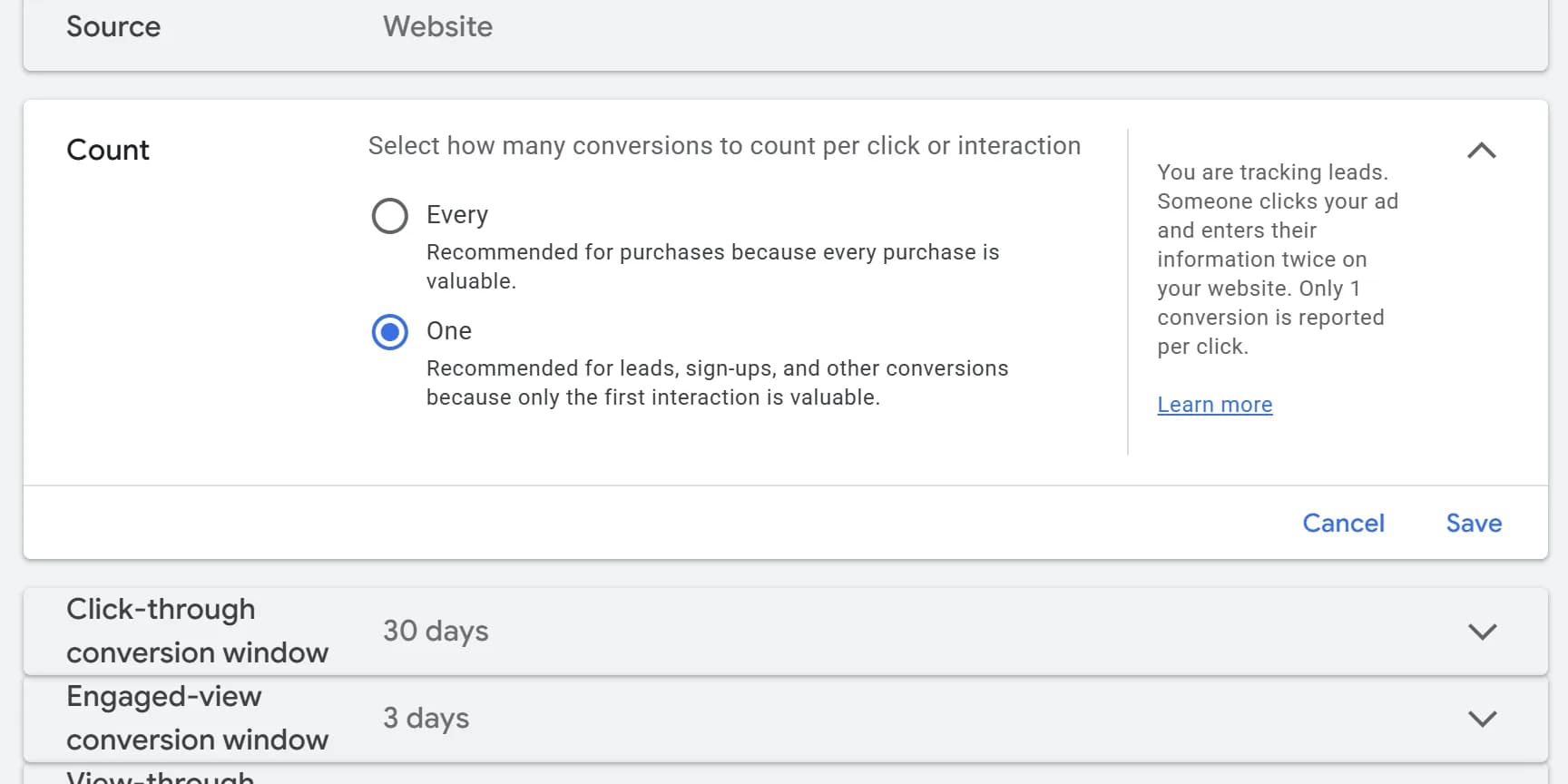
If a lead action is set to count Every conversion, one person can count several times. Set it to One.
- Every
- Counts every conversion that happens after an ad click, for that action.
- Made for sales. Google recommends it for purchases, because every purchase is valuable. For leads, it counts a reloaded thank-you page, a form sent twice and a second question from the same person separately.
- One
- Counts one conversion per ad click, for that action.
- Google's own setting recommends it for leads, because only the first interaction is valuable. Someone who fills out your form three times after one click is one lead, and One counts them once.
Google's default for website actions
Use this for leads
The change applies from that day forward and does not rewrite past months. Calls from ads and calls to the number on your website already default to One.
To see how much Every inflated it, add the Repeat rate column: on the All conversions page, click Columns, open Performance, tick Repeat rate and click Apply. It shows the average conversions per click that leads to one, so on Every, a repeat rate of 1.5 means three conversions for every two ad clicks that converted.
If Google Ads will not let you change Count
Google Ads may not let you edit the count on conversions created from Google Analytics events, and when an action's attribution covers paid and organic channels, Google says the count is managed in Google Analytics. Change it there.
Make the tag fire only on a finished lead
If an action fires on a button click or a page anyone can reach, it counts more than finished leads. Move the trigger to the moment a lead form is actually sent.
A submit button trigger counts the click, so a form that fails because a field was left empty still counts, and on Every, so does each extra click.
A thank-you page trigger counts every load of that page. Google warns that a reload or a return visit can fire the tag again. Use a page only a finished form leads to, and pair it with One.
A form submission event can count every form on your site. Google Analytics' built-in form tracking fires on whatever forms it detects, not just your lead form, so a newsletter signup or a job application can count as a lead once that event is imported. Import an event only your lead form sends.
Then test it. Submit your form once with Google Tag Assistant running and check that the conversion tag fires one time. Then submit it with a required field left empty and check that it does not fire.
If nobody knows what fires what, rebuild instead of patching: remove the old tags and set each action up again in Google Tag Manager, one trigger per kind of lead, so every trigger is written down in one place.
Reset your bidding for the real count
Once the count is right, Conversions will drop and cost per conversion will rise. That is the real number, so judge the campaign on calls and booked jobs. Before you save the fixes, set each budget to what you are willing to spend, then choose how bidding catches up.
- Keep Target CPA
- Raise the target to your real cost per lead in the same sitting. Google gives the same advice when a campaign moves to fewer, deeper conversions: use the cost you actually achieved.
- Pick this if the fixed count still gives you steady conversions, or you plan budget changes soon. A target left at the inflated level sits below what a real lead costs, and the campaign can stop spending to stay under it.
- Switch to Maximize conversions
- Drop the target and let bidding spend your budget on the clean count. Once the numbers settle, set a Target CPA from them.
- Pick this if the fixed count leaves only a few conversions a month, or you do not know yet what a real lead costs. Google says Maximize conversions suits a change like this when you can let it run without big budget changes for 4 to 6 weeks.
Keeps cost in check
Lets bidding relearn
Your real cost per lead is ad spend divided by real leads from ads over the last month or two, from your own records or the actions you kept as primary.
Either way, change things once. Google says bidding takes 1 to 2 conversion cycles in most cases to learn after any change to conversion goals or actions. A conversion cycle is roughly how long your leads take to come in after the click. Make every fix in one sitting, then leave budgets, targets and goals alone while it learns.
If you catch the extra counting within days, like right after a plugin went in, and the campaign uses Smart Bidding, add a data exclusion so bidding ignores those days. Start it early enough to cover your usual delay from click to lead. Google recommends exclusions for a misplaced tag that miscounted conversions, but not for long stretches, so skip it if the counting has been off for months.
Matching Google's numbers to yours
Compare the right columns and dates
Once tracking is right, a few differences remain. Each one has a known cause.
Compare by the date it happened.
Google files each conversion under the day of the ad click. Add the Conversions (by conv. time) column to see the day it happened, which is how your inbox counts.
Allow for late conversions.
A conversion can be recorded up to 90 days after the click, depending on the action's window, 30 days by default. Last month's numbers can still grow.
Decimals are split credit.
Data-driven attribution, Google's default for most actions, can divide one conversion between several ad clicks, so a keyword can show 0.5. The pieces add up to one conversion.
Some are estimates of real conversions.
When Google cannot see the link between a click and a conversion, because of browser limits or a device switch, it models it. Google says modeling decides whether an ad led to a conversion, not whether one happened.
Google Analytics will not match Google Ads exactly either. Google says gaps of up to 20% are common, because the two date and credit conversions differently.
Import qualified leads so Google counts what you count
Even with clean tracking, a conversion is a form fill or a call, and not every one is a customer. To make Google count real leads, send your qualified leads back to Google Ads and bid on those instead.
Spam form fills count like real ones. A bot that comes through your ad and submits the form trips the same trigger as a customer. Google removes some later when it spots spam or invalid clicks, but not all of them.
Calls from ads are filtered better than forms. Google now turns on call recording by default for its forwarding numbers when both phone numbers are in the US or Canada, except for healthcare and financial services or if you turned it off before. With it on, Google's AI stops counting robocalls, spam calls and misdials. Calls it cannot record fall back to your minimum call length, and calls to your own call tracking numbers are not reviewed this way.
Google Ads has two goals built for this: Qualified lead for leads your team confirmed, and Converted lead for leads that became jobs. You import them, usually from your CRM, and Google matches each one to the ad click that started it, using the click ID or the email address your form collected. Google advises letting the new action record for 2 to 3 conversion cycles before bidding on it. Then make it primary and set the form and call actions to Secondary, so each lead counts once and cost per conversion means cost per real lead.
Cost per lead flatters an account. The number that matters is cost per booked job: count the leads from ads that turned into paying work, and divide your ad spend by that.